How to define and use custom forms
Introduction
The form settings in Accurate.Video Validate makes it possible to create custom input forms for creating and editing timeline markers, assets and their video-, audio- and subtitle files. This can be used for a wide array of use cases, such as; reduce the amount of metadata fields to only what is needed, use different sets of metadata fields for different rows in the timeline, or to create advanced metadata forms that fit complex business requirements.
Creating new forms settings can generally be broken down into three steps:
- Define the metadata format using a json schema
- Define the layout of the form with a UI schema
- Declare which form should be used for a marker track, assets, video, audio or subtitles.
Below are a couple of examples following the outline described above.
Markers: Basic Example
First up, a basic setup with a single metadata field which applies for all markers.
Step 1: Metadata format
Defining the metadata format for this example is fairly straightforward. The root element always has to be an object,
all metadata fields are defined as properties on this object. For this example there will be a single field which will
be called "exampleField" and it will be a string. The key defaultMarker is used for the form in this example,
the form with this key is used for all markers by default.
You can read more about the available types here: https://json-schema.org/understanding-json-schema/reference/type.html
Add the following to the root object in the settings block:
{
  "forms": {
    "defaultMarker": {
      "schema": {
        "type": "object",
        "properties": {
          "exampleField": {
            "type": "string"
          }
        }
      }
    }
  }
}
Step 2: Form layout
The next step is to define what the form should look like. This is done by defining a uischema object together with
the schema object created in the previous step.
Forms are made up of controls and layouts. Controls represent the actual inputs for the metadata fields and layouts define how those controls are laid out on the screen.
The root element has to be a layout element. A VerticalLayout will be used in this example which will cause the
controls to be laid out vertically in the form. A control for the exampleField can then be added to the elements
array of the layout.
The label field on the control is used to define a human-readable label to be displayed on the control.
The scope field tells the control which metadata field it should correspond to.
Note how its value corresponds to the structure in the schema defined in the previous step.
Read more about available layout elements here: https://jsonforms.io/docs/uischema/layouts
Combining the uischema with the previous step results in the following:
{
  "forms": {
    "defaultMarker": {
      "schema": {
        "type": "object",
        "properties": {
          "exampleField": {
            "type": "string"
          }
        }
      },
      "uischema": {
        "type": "VerticalLayout",
        "elements": [
          {
            "type": "Control",
            "label": "Example data",
            "scope": "#/properties/exampleField"
          }
        ]
      }
    }
  }
}
Step 3: Track assignment
When there is only a single form that is to be used for all markers there is no need to deal with track assignment. There will be more information on how to do this in the next example.
Summary
This should result in a settings block that contains this:
{
  "forms": {
    "defaultMarker": {
      "schema": {
        "type": "object",
        "properties": {
          "exampleField": {
            "type": "string"
          }
        }
      },
      "uischema": {
        "type": "VerticalLayout",
        "elements": [
          {
            "type": "Control",
            "label": "Example data",
            "scope": "#/properties/exampleField"
          }
        ]
      }
    }
  }
}
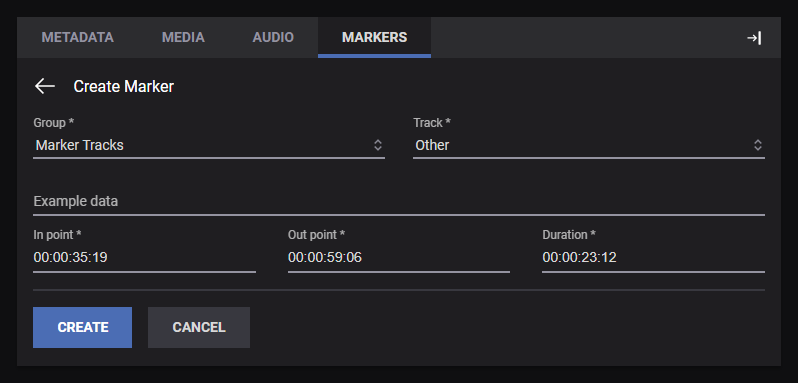
and a resulting form looking like this:
Markers: Field validation & multiple forms
This example explains how to set up the player with two different forms, one simple form with a single field and a more complex form with some validation rules that's assigned to markers on a specific track.
Step 1: Metadata format
Multiple forms can be defined by adding several objects to the forms array. It is important to assign unique id fields
so that they can be referenced later.
The first form will contain a single name field and the second form will contain two fields with some validation rules.
maxlengthlimits the maximum length for the string value ofissueenumlimits the values that thetypefield can take on to "audio", "video" or "subtitles".requiredcan be used to mark a set of metadata fields as required. Users will not be able to leave those fields empty in the form.
Note that the key issueForm is used for the second form. This will be referenced in step 3.
Add the following to the settings block:
{
  "forms": {
    "defaultMarker": {
      "schema": {
        "type": "object",
        "properties": {
          "name": {
            "type": "string"
          }
        }
      }
    },
    "issueForm": {
      "schema": {
        "type": "object",
        "properties": {
          "issue": {
            "type": "string",
            "maxlength": 16
          },
          "type": {
            "type": "string",
            "enum": ["audio", "video", "subtitles"]
          }
        },
        "required": ["type"]
      }
    }
  }
}
More information about string validation rules can be found here: json-schema.org/understanding-json-schema/reference/string
Step 2: Form layout
A uischema has to be added to both of the forms of this example. The HorizontalLayout in the second form will
cause controls to be laid out horizontally in the form. Layouts can contain other layouts making it possible to combine
them to group controls in various ways.
As with the previous example the label adds human-readable labels to controls and the scope field connects controls to
metadata fields. Some metadata types support alternative input controls.
Metadata fields with the enum keyword use a dropdown by default, that can be changed to display as radio buttons or
an autocomplete instead using the format option on the control.
With uischema added to the forms the settings should look like this:
{
  "forms": {
    "defaultMarker": {
      "schema": {
        "type": "object",
        "properties": {
          "name": {
            "type": "string"
          }
        }
      },
      "uischema": {
        "type": "VerticalLayout",
        "elements": [
          {
            "type": "Control",
            "label": "Name",
            "scope": "#/properties/name"
          }
        ]
      }
    },
    "issueForm": {
      "schema": {
        "type": "object",
        "properties": {
          "issue": {
            "type": "string",
            "maxlength": 16
          },
          "type": {
            "type": "string",
            "enum": ["audio", "video", "subtitles"]
          }
        },
        "required": ["type"]
      },
      "uischema": {
        "type": "HorizontalLayout",
        "elements": [
          {
            "type": "Control",
            "label": "Issue",
            "scope": "#/properties/issue"
          },
          {
            "type": "Control",
            "label": "Issue type",
            "scope": "#/properties/type",
            "options": {
              "format": "radio"
            }
          }
        ]
      }
    }
  }
}
Step 3: Track assignment
Track assignment is defined in the markerGroups field of the launch template.
The form with the key defaultMarker is used for all markers unless something else is specified, as for this example
it can still be specified for clarity. The form field controls which form is used for the markers on that track. The
tooltip field is a template string that allows you to build the tooltip from multiple metadata entries.
{
  "markerGroups": [
    {
      "title": "Manual markers",
      "markerTracks": [
        {
          "title": "Notes",
          "form": "defaultMarker",
          "markers": [
            {
              "metadata": [
                {
                  "key": "name",
                  "value": "Test marker"
                }
              ],
              "start": {
                "frame": 200,
                "numerator": 24,
                "denominator": 1
              },
              "end": {
                "frame": 350,
                "numerator": 24,
                "denominator": 1
              }
            }
          ]
        },
        {
          "title": "Issues",
          "form": "issueForm",
          "tooltip": "%type issue: %issue",
          "markers": [
            {
              "metadata": [
                {
                  "key": "issue",
                  "value": "typo"
                },
                {
                  "key": "type",
                  "value": "subtitles"
                }
              ],
              "start": {
                "frame": 500,
                "numerator": 24,
                "denominator": 1
              },
              "end": {
                "frame": 700,
                "numerator": 24,
                "denominator": 1
              }
            }
          ]
        }
      ]
    }
  ]
}
Summary
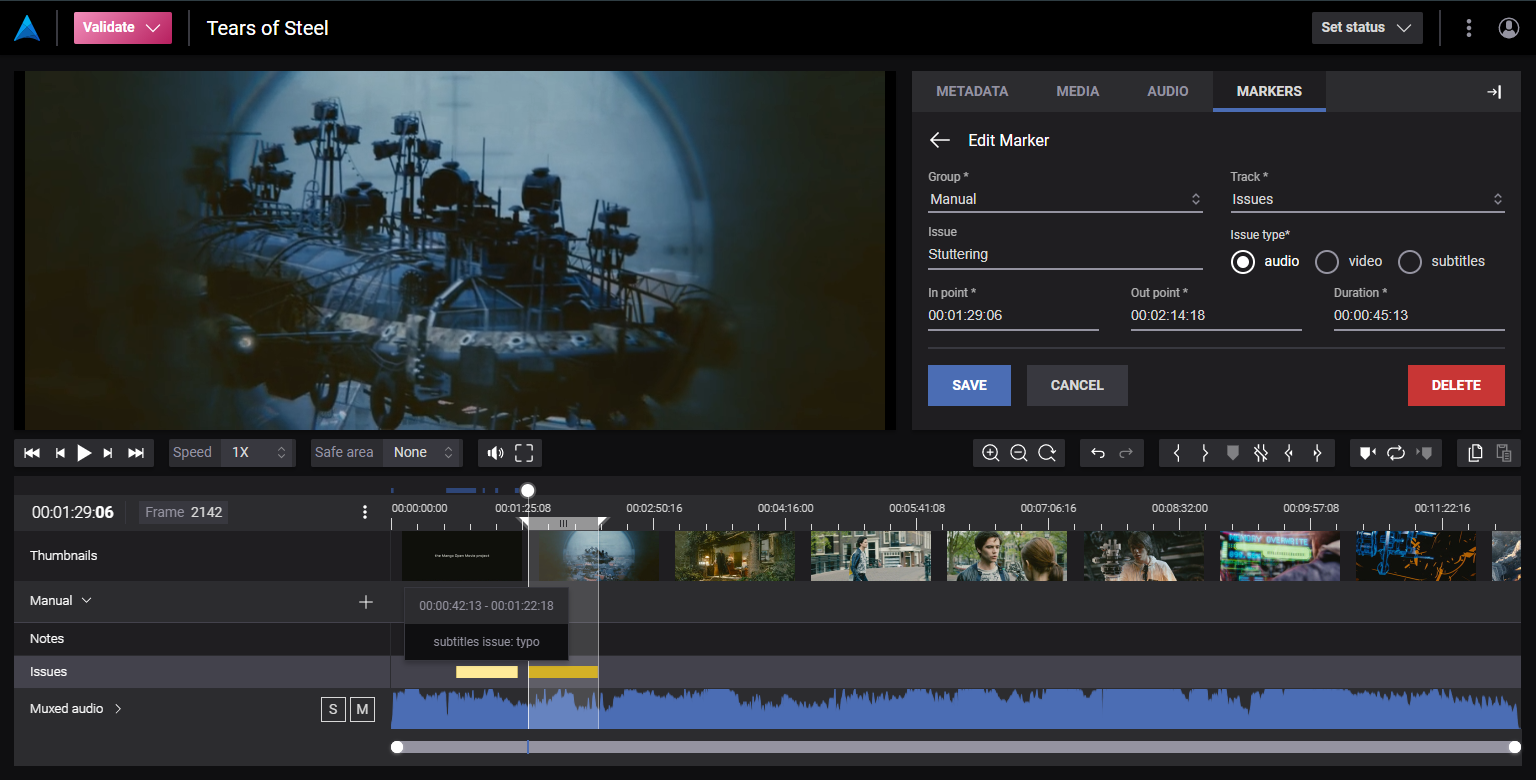
This should result in a player that looks something like this:
Asset, video, audio and subtitle forms
This example explains how to use forms when working with file metadata.
Step 1: Metadata format
Start off by defining a form under the forms key. In this example the id assigned to the form is assetMetadataForm and three editable properties are defined: title, description and genre.
You can read more about the available types here: json-schema.org/understanding-json-schema/reference/type.html
Add the following to the root object in the settings block:
{
  "forms": {
    "assetMetadataForm": {
      "schema": {
        "type": "object",
        "properties": {
          "title": {
            "type": "string"
          },
          "description": {
            "type": "string"
          },
          "genre": {
            "type": "string",
            "enum": [
              "Action",
              "Drama",
              "Horror",
              "Comedy",
              "Thriller",
              "Western"
            ]
          }
        }
      }
    }
  }
}
Step 2: Form layout
The next step is to define what the form should look like. This is done by defining a uischema object together with the schema object created in the previous step.
Read more about available layout elements here: jsonforms.io/docs/uischema/layouts
Combining the uischema with the schema defined in previous step results in the following:
{
  "forms": {
    "assetMetadataForm": {
      "schema": {
        "type": "object",
        "properties": {
          "title": {
            "type": "string"
          },
          "description": {
            "type": "string"
          },
          "genre": {
            "type": "string",
            "enum": [
              "Action",
              "Drama",
              "Horror",
              "Comedy",
              "Thriller",
              "Western"
            ]
          }
        }
      },
      "uischema": {
        "type": "VerticalLayout",
        "elements": [
          {
            "type": "Control",
            "label": "Title",
            "scope": "#/properties/title"
          },
          {
            "type": "Control",
            "label": "Description",
            "scope": "#/properties/description",
            "options": {
              "format": "textarea"
            }
          },
          {
            "type": "Control",
            "label": "Genre",
            "scope": "#/properties/genre"
          }
        ]
      }
    }
  }
}
Step 3: Form assignment
What metadata form to use for assets, videos, audio or subtitle files is configured in the Metadata View settings. You select the form you want to use under the different field sets using the form key. Note that, for this example, we chose a generic form (fileMetadataForm) for video, audio and subtitle files:
{
  "metadataViews": [
    {
      "id": "defaultMetadataView",
      "name": "Default",
      "description": "The default metadata view",
      "active": true,
      "fieldSets": {
        "asset": {
          "form": "assetMetadataForm",
          "readOnlyFields": [ ... ]
        },
        "videoFile": {
          "form": "fileMetadataForm",
          "readOnlyFields": [ ... ]
        },
        "audioFile": {
          "form": "fileMetadataForm",
          "readOnlyFields": [ ... ]
        },
        "subtitleFile": {
          "form": "fileMetadataForm",
          "readOnlyFields": [ ... ]
        }
      }
    }
  ]
}
Summary
This should result in a settings block that looks something like this:
{
  "forms": {
    "assetMetadataForm": {
      "schema": {
        "type": "object",
        "properties": {
          "title": {
            "type": "string"
          },
          "description": {
            "type": "string"
          },
          "genre": {
            "type": "string",
            "enum": [
              "Action",
              "Drama",
              "Horror",
              "Comedy",
              "Thriller",
              "Western"
            ]
          }
        }
      }
    },
    "uischema": {
      "type": "VerticalLayout",
      "elements": [
        {
          "type": "Control",
          "label": "Title",
          "scope": "#/properties/title"
        },
        {
          "type": "Control",
          "label": "Description",
          "scope": "#/properties/description",
          "options": {
            "format": "textarea"
          }
        },
        {
          "type": "Control",
          "label": "Genre",
          "scope": "#/properties/genre"
        }
      ]
    },
    "fileMetadataForm": {
      "schema": {
        "type": "object",
        "properties": {
          "description": {
            "type": "string"
          },
          "status": {
            "type": "string"
          }
        }
      },
      "uischema": {
        "type": "VerticalLayout",
        "elements": [
          {
            "type": "Control",
            "label": "Status",
            "scope": "#/properties/status"
          },
          {
            "type": "Control",
            "label": "Description",
            "scope": "#/properties/description",
            "options": {
              "format": "textarea"
            }
          }
        ]
      }
    }
  },
  "metadataViews": [
    {
      "id": "defaultMetadataView",
      "name": "Default",
      "description": "The default metadata view",
      "active": true,
      "fieldSets": {
        "asset": {
          "form": "assetMetadataForm",
          "readOnlyFields": []
        },
        "videoFile": {
          "form": "fileMetadataForm",
          "readOnlyFields": []
        },
        "audioFile": {
          "form": "fileMetadataForm",
          "readOnlyFields": []
        },
        "subtitleFile": {
          "form": "fileMetadataForm",
          "readOnlyFields": []
        }
      }
    }
  ]
}
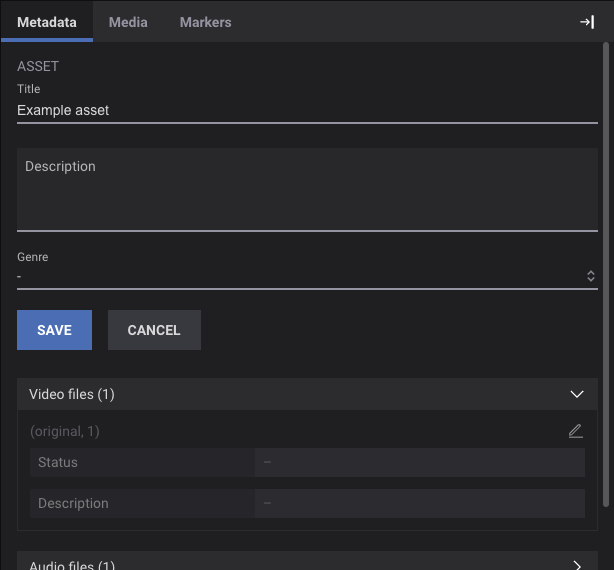
The resulting form should look like this:
In view mode
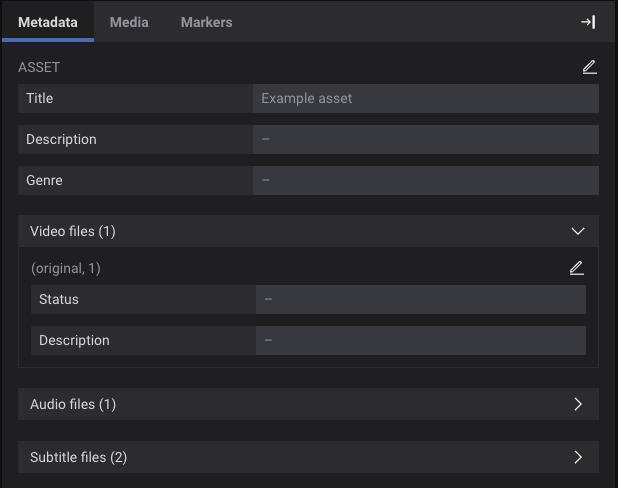
In edit mode